Best Mouse for Voice Actors: Studio Recording Guide
By Lars Nystrom • 6th May
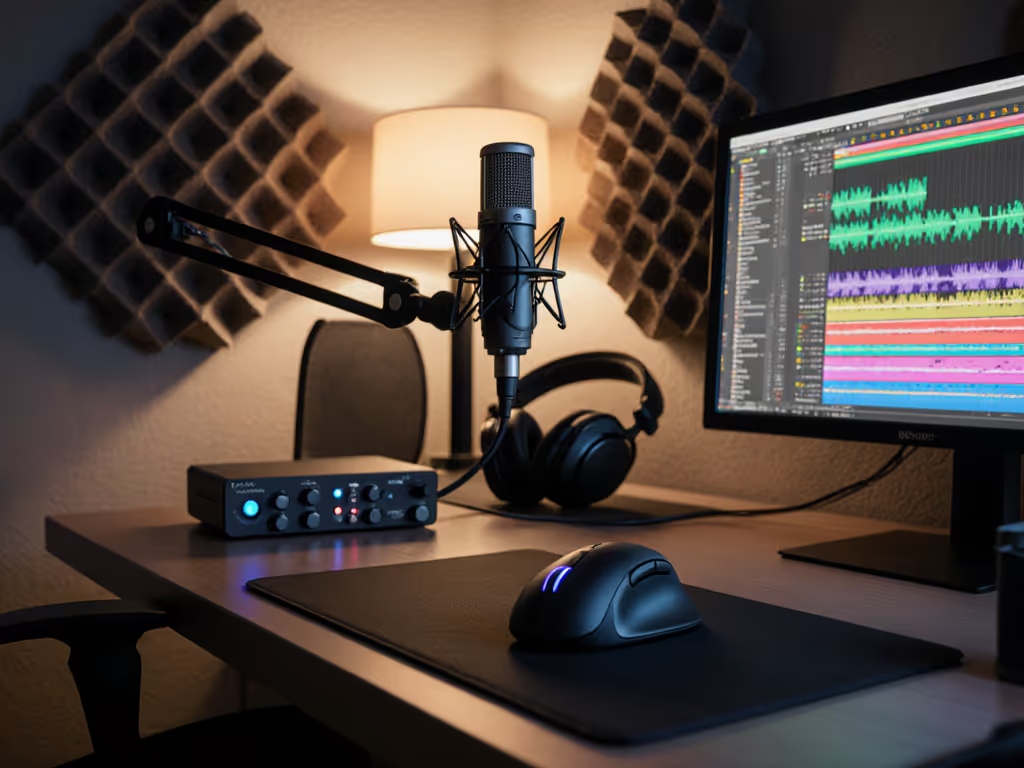
Finding the best mouse for voice actors requires a fundamentally different lens than picking a tool for gaming or general productivity. Your audio recording studio mouse is not just a peripheral, it is a gateway to uninterrupted takes, predictable workflows, and the muscle memory that keeps your hand quiet and your focus sharp. When you're recording dialogue, the last thing your listeners should hear is a click, a rattle, or the ambient friction of your input device. What they should hear is your voice, clean and intentional.
I once moved between a design tablet, macOS shortcuts, and Windows CAD hotkeys daily. The cognitive load of remembering three shortcut maps was exhausting. When I switched to a mouse with onboard layers and a logical thumb cluster, something shifted (not just in speed, but in mental clarity). The same principle applies to studio work. Your mouse should become invisible, its controls mapped to your recording and editing tasks so thoroughly that reaching for it feels automatic. This guide maps intent to the right input devices, helping you eliminate friction before it ever reaches your microphone.
Why Mouse Choice Matters in the Voice Recording Studio
Voice recording demands a specific kind of silence. Unlike music production, where soft key switches are normalized, or video editing, where occasional clicks disappear into the mix, voice-over work captures every detail of your environment. A mouse click at the wrong moment (during a pause, a dramatic beat, or while monitoring) becomes a ruined take.
Beyond the acoustic concern lies the ergonomic reality of long sessions. Voice actors often spend 4-8 hours editing, comping takes, and adjusting timing in their DAW. Poor mouse ergonomics compound over weeks, leading to wrist strain and the kind of forearm tension that subtly degrades vocal performance. The relationship between physical comfort and vocal consistency is well-documented in performance physiology: when your hand and wrist are relaxed, your diaphragm and throat follow suit.
Finally, your mouse is a workflow lever. Every time you reach for it instead of a keyboard shortcut, or struggle to position your cursor precisely on a timeline marker, you interrupt the flow state that characterizes efficient studio sessions. Reduce decisions, increase flow; the principle is simple, but the execution requires a mouse that matches your hand, your desk, and your task map.
The Core Criteria for Studio Mice
Minimal Click Noise and Quiet Operation
The first technical mandate: acoustically inert switches. Standard gaming mice use tactile, audible clicks (snap domes or mechanical switches designed for speed feedback). In a studio environment, these are liabilities.
Look for mice with:
- Near-silent left and right clicks (often soft-switch or membrane-based)
- Quiet or muted scroll wheels (ratcheting can be louder than you'd expect)
- No loud side-button feedback if you're using programmable thumb buttons
Many affordable gaming mice prioritize audibility for feedback. For a studio, prioritize silence. A fact confirmed by independent testing of studio peripherals: mice with under 60 decibels click profiles significantly reduce post-production noise bleed compared to standard gaming options.
Ergonomics for Extended Sessions
Comfort is not a luxury in voice work, it is a reliability baseline. Your hand will be on this mouse for thousands of takes and edits. If you're unsure of your natural grip, start with our grip style guide. Poor ergonomics introduce tremor, reduce precision, and create fatigue that manifests as vocal strain.
Evaluate:
- Shape fit to your grip type: Palm grip needs contoured, high-back support. Claw grip benefits from a narrower, lower-profile design. Fingertip grip works best with lightweight, compact mice.
- Hand size alignment: A too-small mouse forces gripping tension; oversized mice require constant repositioning.
- Wrist posture: The ideal setup keeps your wrist neutral (not bent up, down, or rotated). A vertical or semi-vertical orientation often beats a flat, claw-inducing shape.
- Surface texture: Sweaty hands? Look for textured, grippy coatings. Dry hands? A smooth surface reduces friction and load.
Multi-Device Switching and Studio Integration
Many voice actors work across platforms: recording on Windows or Mac, editing on a laptop, collaborating on a tablet. For device-hoppers, see our multi-device mouse comparison to pick models that switch fast without dropping connections. A mouse that seamlessly switches between devices eliminates the context-switching overhead that kills flow.
Key features:
- Dual-mode wireless or fast device-switching buttons to toggle between computers
- Consistent button mapping across OS so your muscle memory doesn't fracture
- Reliable 2.4 GHz or Bluetooth stability with low latency (over 10 ms is perceptible; aim for under 5 ms)
- Predictable battery life if wireless (8+ hours per charge for daily use; 30+ days if AA/AAA powered)
Programmable Buttons and Macro Mapping
This is where your mouse becomes a studio tool rather than just a pointer. To map DAW shortcuts and macros reliably, follow our mouse customization guide. Onboard memory (not cloud-dependent software) matters here. If your mouse requires cloud sync or per-machine configuration, you add friction. Your thumb cluster should map directly to your workflow.
Common studio macros:
- Play/pause (tied to your DAW's hotkey)
- Undo (reduce reach fatigue by collapsing this to thumb)
- Navigate between tracks (forward/back buttons for vertical navigation)
- Grid toggle or snap-to-sample (reduce decision overhead)
- Zoom in/out (paired with scroll wheel modifiers)
The goal is stepwise clarity: your hand knows where every function lives without looking or thinking.
Comparative Analysis: Mouse Types for Voice Actors
Standard Ergonomic Mice (Silent-Switch Variants)
Profile: Mid-weight, contoured, designed for productivity with a focus on comfort.
Strengths:
- Excellent long-session ergonomics if size-matched
- Often silent or near-silent switches
- Reliable multi-device support
- Predictable, stable wireless
Weaknesses:
- Limited programmable buttons compared to gaming mice
- Scroll wheels may still produce audible ratcheting
- Often heavier, which can tire smaller hands
- May lack onboard memory, requiring per-device setup
Studio Fit: High. Ideal for voice actors who prioritize comfort and minimal acoustic bleed. Best choice if your studio environment is acoustically treated and you're sensitive to equipment noise.
Workflow Mapping: Focus on the few buttons you need most. One side button for undo, another for a custom macro (e.g., zoom to fit selection in Audacity or Adobe Audition). This reduces hand movement and keeps your eyes on the screen.
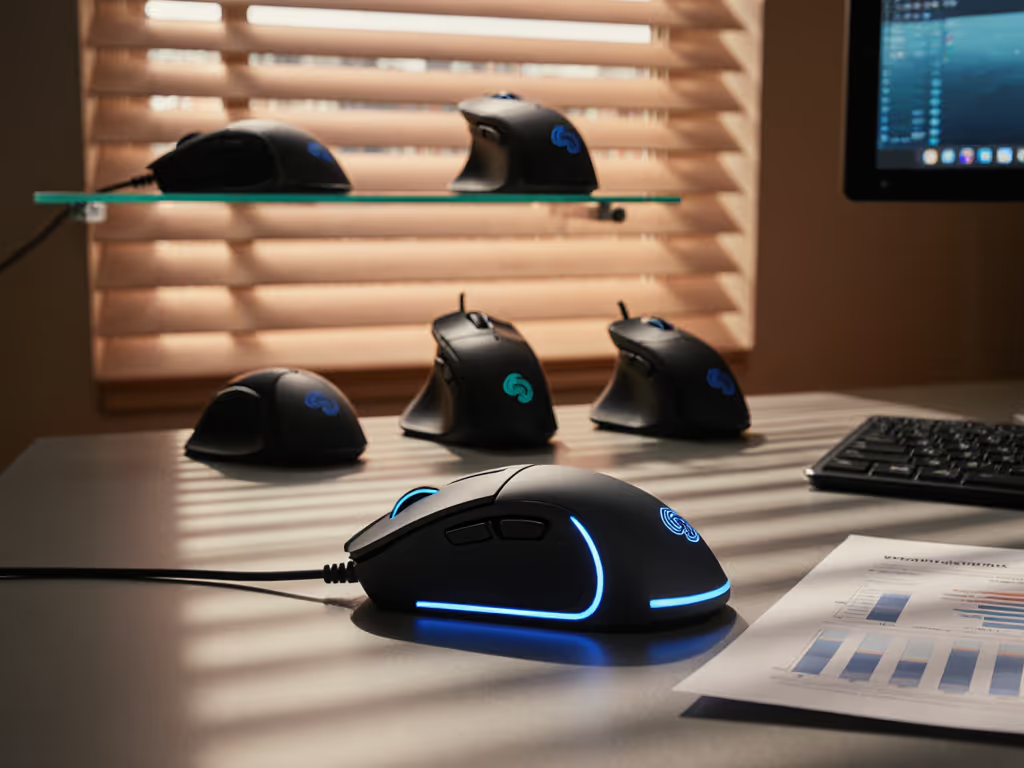
Lightweight Gaming Mice with Modular Design
Profile: Minimal, symmetrical or ergonomic-lightweight, often with side buttons designed for MOBAs or competitive shooters but adaptable to studio work.
Strengths:
- Reduced hand strain due to lower weight
- Usually feature multiple programmable buttons
- Highly modular: swappable feet, lightweight cables, adjustable switches
- Better sensors for precise cursor placement (useful for timeline editing)
Weaknesses:
- Switches and scroll wheels often audible (designed for feedback)
- Require aftermarket or DIY modifications for silent operation
- May have a learning curve for programmable button layout
- Battery life on wireless versions can be shorter
Studio Fit: Medium-to-High if you're willing to customize. Voice actors who are comfortable tweaking hardware (swapping switches, silencing components) can adapt gaming mice effectively. The precision benefits extend to fine timeline edits and waveform selection.
Workflow Mapping: Program each thumb button methodically. Left button = Undo. Right button = Redo. Pinky extension (if available) = Mute main output. DPI up/down buttons can map to zoom levels, reducing scroll wheel dependency. The extra programmability reduces reach fatigue significantly.
Vertical and Ergonomic Specialty Mice
Profile: Hand-held in a shake-hands orientation, often with superior wrist neutrality and contouring.
Strengths:
- Excellent for RSI prevention due to natural wrist angle
- Typically very quiet (specialty designs prioritize ergonomics over tactile feedback)
- Reduced forearm tension over long sessions
- Often available in multiple size variants
Weaknesses:
- Higher price point
- Learning curve: your muscle memory from flat mice requires reset
- Fewer programmable buttons in some models
- May lack multi-device switching
Studio Fit: Very High for actors with existing wrist discomfort or those in long-session workflows (6+ hours daily). The ergonomic advantage translates directly to vocal consistency: a relaxed hand means a relaxed throat.
Workflow Mapping: Vertical mice often have fewer side buttons, so prioritize ruthlessly. One thumb button for the most-used action. If your DAW supports it, configure the scroll wheel itself as a mode switch (click + scroll = zoom; plain scroll = timeline navigation).
Trackballs and Alt Input Devices
Profile: Stationary or semi-stationary input; you move your fingers to manipulate a ball, not move the whole device.
Strengths:
- Virtually silent operation (ball rotation makes no meaningful noise)
- Minimal hand and wrist movement reduces fatigue
- Excellent precision for fine adjustments
- Superior multi-device switching in many models
- Very low learning curve if you've used a trackball before
Weaknesses:
- Steep learning curve if you've never used one (expect 1-2 weeks of slower workflow)
- Requires clean hands or frequent ball cleaning
- Often fewer programmable options than mice
- Not ideal if your desk space is minimal
Studio Fit: Medium. Best for voice actors with existing RSI, small desk setups, or those open to retraining. The acoustic and ergonomic advantages are real, but the workflow cost of retooling is non-trivial.
Workflow Mapping: Trackballs shine when mapped to continuous tasks: scrolling timelines, zooming, panning waveforms. Program any available buttons for discrete actions (play, stop, undo). Your finger training becomes the interface, and fine motor control improves over weeks.
System-Mapping for Voice Recording Workflows
Once you've selected your mouse type, the real work is friction-hunting in your actual task sequence. Let's map a typical voice actor's workflow and assign mouse actions:
Example Workflow: Recording and Editing in Adobe Audition
Session Setup Phase:
- Power on interface and monitor audio levels
- Mouse action: Navigate to input settings (single click, no custom button needed)
- Optimization: This is rare; no macro needed
Recording Phase:
- Hit record, monitor levels, re-record if needed
- Mouse action: Minimize; use keyboard hotkeys (Spacebar for play/stop)
- Optimization: Your mouse sits idle. No programmable overhead here.
Editing Phase (high-friction zone):
- Listen to playback, identify flubs
- Drag to select a problem region
- Mouse action: Precise timeline selection (scroll wheel for zooming in/out)
- Optimization: Program scroll wheel click as "zoom to selection." Program side button as "undo."
- Trim, nudge, or copy the region
- Mouse action: Reach for Undo repeatedly (common task)
- Optimization: Thumb button = Undo. Eliminates keyboard reach.
- Drag corrected region into place
- Mouse action: Drag in timeline (uses precision of your mouse sensor)
- Optimization: Select a mouse with LOD (lift-off distance) calibration so small adjustments don't require pixel-perfect positioning
Final Steps:
- Export and move to DAW for mixing
- Mouse action: File navigation (generic click)
- Optimization: No mouse macro; keyboard shortcuts for copy/paste suffice
Total programmable button uses per hour: Undo (~30-50 times), zoom toggle (~10-15 times), play/pause (~5-10 times if monitored via mouse). Your thumb will earn its keep.
The goal is stepwise clarity: your hand knows which button does which task before you reach for it. This reduces decisions, increases flow, and keeps your focus on the vocal performance itself.
Key Specifications to Compare
When evaluating candidates, use this system-mapping approach:
Noise Floor
- Measurement: Peak decibels of left-click, right-click, and scroll wheel under identical testing conditions
- Studio threshold: Aim for under 65 dB at 15 cm distance (roughly the distance from your hand to a quiet microphone)
- Why it matters: Ambient mic bleed at this level is typically imperceptible in post-processing
Click Latency
- Measurement: Time from physical button press to registered input (measured in milliseconds)
- Studio threshold: Under 20 ms is imperceptible; under 10 ms is ideal for precise timeline edits
- Why it matters: Latency doesn't affect vocal recording, but it impacts editing precision and your sense of responsiveness
Ergonomic Alignment
- Measurement: Hand size (measured palm-width); grip type (palm, claw, fingertip); contour fit (rated by users with similar hand geometry)
- Studio threshold: Your hand should rest naturally with wrist neutral and fingers relaxed
- Why it matters: Poor fit introduces tension that radiates up the forearm and into your throat
Polling Stability (Wireless)
- Measurement: Consistency of wireless polling rate over 8+ hours; jitter (deviation from nominal rate)
- Studio threshold: 125 Hz polling with under 5% jitter is acceptable; 250 Hz or higher with <2% jitter is ideal
- Why it matters: Unstable polling creates cursor micro-stutter, which compounds during extended editing and introduces subtle frustration
Battery Predictability (Wireless)
- Measurement: Actual operating hours vs. advertised; consistency across multiple charge cycles
- Studio threshold: Advertised hours should be achievable with typical studio use (5-6 hours daily, 5 days per week)
- Why it matters: A dead mouse mid-session disrupts flow and creates stress
Onboard Memory and Multi-Device Support
- Measurement: Whether the mouse stores profiles locally (on the device) or requires cloud sync; how quickly it switches between paired devices
- Studio threshold: Profiles should be editable on-device without internet; device-switching should take under 2 seconds
- Why it matters: Cloud-dependent mice add latency and reduce portability for the traveling voice actor
Actionable Next Steps: Building Your Studio Mouse Setup
Step 1: Audit Your Current Setup and Pain Points
Before buying, document your actual friction:
- Record your typical session: Time yourself on a standard editing task (comping a 3-minute take, for example)
- Note every mouse action: How many times do you undo? Zoom? Navigate? Click on specific UI elements?
- Identify discomfort hotspots: After 2 hours, where does your hand hurt? Wrist, palm, thumb, forearm?
- List acoustic issues: In a quiet room, what mouse sounds are audible at arm's length?
This data is your filter. If you undo 50 times per hour, programmable undo becomes non-negotiable. If your wrist aches after 90 minutes, vertical ergonomics move up the priority list. If you record in an untreated room, silent switches are critical.
Step 2: Rank Your Priorities
Create a three-tier hierarchy:
Tier 1 (Must-Have):
- Minimal click noise (record your current mouse in a silent room, then compare)
- Comfortable for your hand size and grip type
- Multi-device support if you work across machines
Tier 2 (High-Value):
- At least two programmable buttons (for undo and one other frequent task)
- Scroll wheel precision for timeline zooming
- Battery life if wireless (aim for 1-week+ intervals between charges)
Tier 3 (Nice-to-Have):
- Advanced sensor features (higher DPI, better LOD calibration)
- Extensive customization (swappable feet, silent switches, modular design)
- Premium build materials or aesthetics
Allocate your budget top-to-bottom. A silent mouse that fits poorly will lose to a silent mouse tailored to your hand, even if the latter costs more.
Step 3: Test Before Committing
Many retailers allow returns within 14-30 days. Use this window ruthlessly:
- Record reference takes the day the mouse arrives, using your current setup. Do a 5-minute take with your new mouse audible in the room. Export and listen for bleed.
- Work a full session (4-6 hours) and assess wrist and hand comfort. Do this before the return window closes.
- Test multi-device switching if applicable. Confirm latency and profile switching work as expected.
- Check battery behavior over the first week. Does it hold its advertised time?
If comfort or acoustic performance falls short, return it. The sunk-cost bias is real, but committing to a poor fit leads to months of discomfort and reduced productivity.
Step 4: Customize Your Button Mapping
Once you've settled on a mouse, spend an afternoon mapping your workflow:
- Open your primary DAW (Audition, Pro Tools, Reaper, etc.)
- List the five most-repeated mouse actions in a typical session
- Assign them to onboard memory profiles in your mouse software (if available) or configure per-device
- Test each macro for one full session; refine if needed
- Document your layout in a small note so you remember it across weeks of breaks
The goal is automatic: your thumb finds the undo button without thinking. Your scroll wheel feels like a zoom tool, not just scrolling. This takes a few days to cement, but once ingrained, it becomes invisible.
Step 5: Optimize Your Environment
Your mouse is only as good as the surface it lives on:
- Use a mousepad or desk surface that matches your mouse feet. Microfiber mouse pads reduce glide resistance for most mice; hard surfaces (glass, aluminum) can be unpredictable.
- Check your mouse feet for wear every 2-3 months. Worn feet create drag and slow your tracking. Replacement feet are cheap.
- Keep your mouse sensor clean. Dust and debris interfere with tracking precision, leading to micro-stutters that compound in long editing sessions. For safe maintenance steps, use our mouse cleaning guide.
- Confirm your DPI settings for your typical workflow. Most voice actors benefit from 800-1600 DPI; gaming-level 3200+ DPI introduces tremor in fine selection tasks.
Conclusion: The Silent Interface That Becomes Invisible
Choosing the best mouse for voice actors is an act of system-mapping: you align a physical input device with your hand, your workflow, and your acoustic environment. The end result is a tool so well-integrated that it stops feeling like a tool, it becomes an extension of intent.
Map intent to buttons; your mouse becomes muscle memory. This isn't just philosophy; it's a practical outcome of reducing decisions and increasing flow. When your undo button is always under your thumb, when your zoom action requires a scroll-wheel click, when your mouse is quiet enough to disappear into your microphone's background, you're no longer managing a peripheral. You're managing your session.
Start with your pain points. Prioritize comfort, silence, and workflow integration. Test rigorously before committing. Customize your button mapping. Then step back and let the interface vanish. Your listeners will thank you; they will hear only your voice, exactly as it should be.
Related Articles