Children's Mouse Fit Guide: Support Developing Hands
By Maya Chen • 3rd Feb

Every educator and parent needs a reliable children's computer mouse guide when setting up learning stations. Smart educational mouse selection isn't just about features, it's about respecting how children's hands develop and move. I've seen too many young students develop strain simply because we've scaled down adult technology without considering their unique physiology. Comfort is a performance spec (even for developing hands), and getting this right means children can focus on learning, not discomfort.
Children's smaller frames and developing motor skills create different ergonomic demands than adults. According to research published in ErgoWeb, children operate at roughly twice the percentage of their maximum muscle capacity (MVC) compared to adults when using standard input devices, meaning that while adults might use 1.5% of their MVC to click a mouse button, children use about 3%. This isn't just a minor difference; it's like asking them to lift twice the weight, repeatedly throughout the school day. When children use standard-sized mice, they often develop excessive ulnar deviation (that uncomfortable wrist bend toward the pinky side) that strains developing tissues. Early in my career, I mistakenly thought smaller hands just needed smaller versions of the same tools, until I realized children's movement patterns and strength profiles require fundamentally different design approaches. For a deeper look at healthy positioning principles, see our ergonomic mouse guide.
The Hidden Strain of One-Size-Fits-All Technology
Let's talk plain-language anatomy: children aren't just "small adults" when it comes to computer interaction. Their developing motor skills, narrower palm spans, and lower grip strength create unique challenges that adult-oriented devices can't address. Research shows children take nearly twice as long to move between targets as adults, and both children and adults perform pointing tasks faster and with fewer errors when using a smaller mouse. This isn't surprising when you consider children's hands are about 45% as strong as adults' hands on average.
Comfort first; speed shows up when pain steps aside.
Standard mice force children into awkward compensations (like raising their shoulders or bending wrists excessively) that become ingrained habits. Over time, these patterns can affect not just comfort, but also fine motor development. I've assessed children who've developed tension patterns from mouse use that mirror those I typically see in office workers with repetitive strain injuries. The difference? These young users are still developing their neuromuscular pathways, making proper ergonomic alignment even more critical.
Four Pillars of Proper Mouse Fit for Children
1. Hand-Size Harmony
A properly fitting mouse should contact the entire palmar surface without requiring finger stretching or hand constriction. For most elementary-age children, this means a mouse measuring 3.5-4.5 inches in length, substantially smaller than standard adult mice (typically 4.7-5.2 inches). For older kids or teens with petite hands, our best mice for small hands roundup compares compact shapes that still offer control. Look for models designed specifically as a developmental motor skills mouse, where the primary contact points align with children's shorter finger spans. Your safety-first check: when your child grasps the mouse, all fingers should rest comfortably on the surface without reaching or curling excessively.

2. Neutral Wrist Positioning
This is non-negotiable for developing bodies. Children's wrists should maintain a straight line from forearm to hand (not bent up, down, or sideways). Standard mice often force ulnar deviation (wrist bent toward pinky), which research shows increases with adult-sized devices. An appropriate ergonomic pc mouse for children should keep the wrist in neutral alignment, with the thumb and pinky forming a stable base of support. Your actionable check: have your child hold an imaginary glass of water; if they'd spill it while holding the mouse, the angle is wrong.
3. Effortless Activation
Consider that children work at a higher percentage of their maximum strength. Buttons should require minimal force to activate (ideally under 50 grams of pressure). Curious which designs lower click force and noise? Check our mouse switch types breakdown. Some child-friendly mouse design approaches replace traditional click mechanisms with squeezable surfaces (like the BenjiBee mouse's "head" design) that allow activation from multiple contact points. This accommodates developing motor control while reducing strain. Your simple check: if your child's cheeks tense or they "bear down" while clicking, the activation force is too high.
4. Age-Appropriate Design Elements
For classroom technology selection, consider developmental stage. If your learner has mobility or accessibility needs, explore our adaptive computer mice guide for specialized options. Preschoolers benefit from mice with large activation surfaces and minimal button differentiation, while elementary students can handle two-button designs with appropriate sizing. The desk height matters too: children's elbows should rest at 90-100 degrees with forearms fully supported. Remember that children's bones are still developing and particularly susceptible to alignment issues from prolonged poor positioning.
Building Healthy Computing Habits
No mouse, however perfectly sized, can compensate for prolonged static positioning. Children need movement breaks every 20-30 minutes (not just for their hands, but for their developing spines). Set up a visual timer that cues them to stand, stretch, and reset their posture. Teach them the "mouse hand check": periodically relax their hand completely, then gently reposition it on the mouse. This builds awareness of neutral positioning.
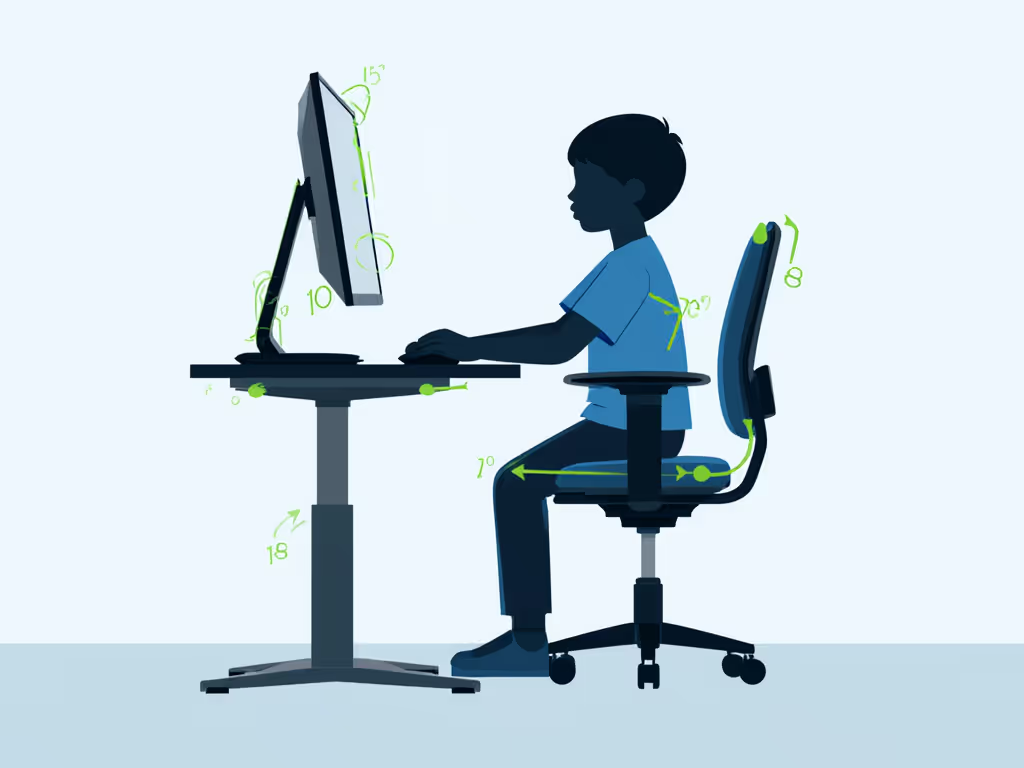
Also, position monitors at eye level. When children crane their necks downward to view screens, it creates a cascade of compensations that affects shoulder positioning and ultimately hand mechanics. A simple stack of books under a laptop can make a significant difference in overall alignment.
Your Actionable Assessment Checklist
Before your child spends another hour at the computer, perform these safety-first checks:
- Contact Check: Does the entire palm make comfortable contact with the mouse? No gaps or pressure points?
- Wrist Check: Is the wrist straight (not bent up, down, or sideways) when holding the mouse?
- Click Check: Does clicking require minimal finger movement and no visible facial tension?
- Reach Check: Can they reach the mouse without leaning forward or hiking the shoulder?
- Movement Check: Are they taking micro-breaks to shake out their hands every 15-20 minutes?
If any check fails, it's time to reassess your classroom technology selection. Remember that proper ergonomic alignment isn't about eliminating all discomfort immediately (it's about creating sustainable interaction patterns that support healthy development).
Next Steps for Confident Implementation
Start tomorrow with a "mouse fit minute" before computer use: have your child rest their hand on a table, then trace around it. Measure the width and length (this is their ideal mouse size range). Compare this to your current mouse; if it's more than 10% larger in any dimension, consider a purpose-built children's option.
Then, observe their natural hand position during non-computer activities. Notice how their fingers rest when relaxed: this "neutral" shape should match their mouse interaction. To identify their grip and match shapes accordingly, see our mouse grip styles guide. Finally, set a timer for 20-minute intervals during computer use. When it chimes, have them perform the "shimmy shake" (vigorously shaking out their hands) before resuming.
Equipping children with properly fitted technology isn't just about preventing discomfort (it's an investment in their developing motor skills and technological fluency). When we honor how children's hands naturally move and grow, we build foundations for lifetime digital wellness. Comfort is a performance spec for young users too, and when we get the fit right, learning flows without limits.
Related Articles