Productivity Mouse Software Guide: Customize Without Strain
By Maya Chen • 28th Nov

Whether you're navigating spreadsheets for hours or lining up headshots in competitive gaming, your productivity mouse setup should enhance rather than hinder your performance. For spreadsheet-heavy workflows, see our Best Excel Mouse for scroll precision and shortcut ergonomics. And while many reach for a gaming mouse seeking speed, the real performance differentiator is often overlooked: strain-free operation. The right software configurations can transform an ordinary mouse into a personalized tool that reduces physical stress while boosting efficiency. Let's explore how to customize your mouse without compromising comfort.
The Ergonomics-Productivity Connection
Too many users sacrifice neutral wrist posture for speed, not realizing that discomfort actively degrades performance. When muscles tense from poor positioning, fine motor control diminishes (your cursor becomes jittery, selections less precise), and cognitive load increases as you compensate for physical strain. I've seen countless professionals push through wrist discomfort with "just one more meeting" until their morning email routine becomes painful. Early in my career, a poorly designed mouse left me gripping with excessive tension, forcing my shoulder to compensate for wrist misalignment. The solution wasn't just a new mouse (it was understanding how to configure it for my specific hand span and work patterns).
Comfort first; speed shows up when pain steps aside.
This isn't just philosophy: it's biomechanics. When your forearm maintains a neutral position (thumb pointing up, not angled inward), nerve compression risk drops significantly. Studies show that even minor wrist deviations increase carpal tunnel pressure by 20 to 30%, directly impacting your sustainable work duration. Your mouse software isn't just about assigning shortcuts. It's your primary tool for maintaining this neutral foundation.
Getting Started: Safety-First Setup
Before diving into macros or gestures, ensure your baseline configuration supports healthy movement:
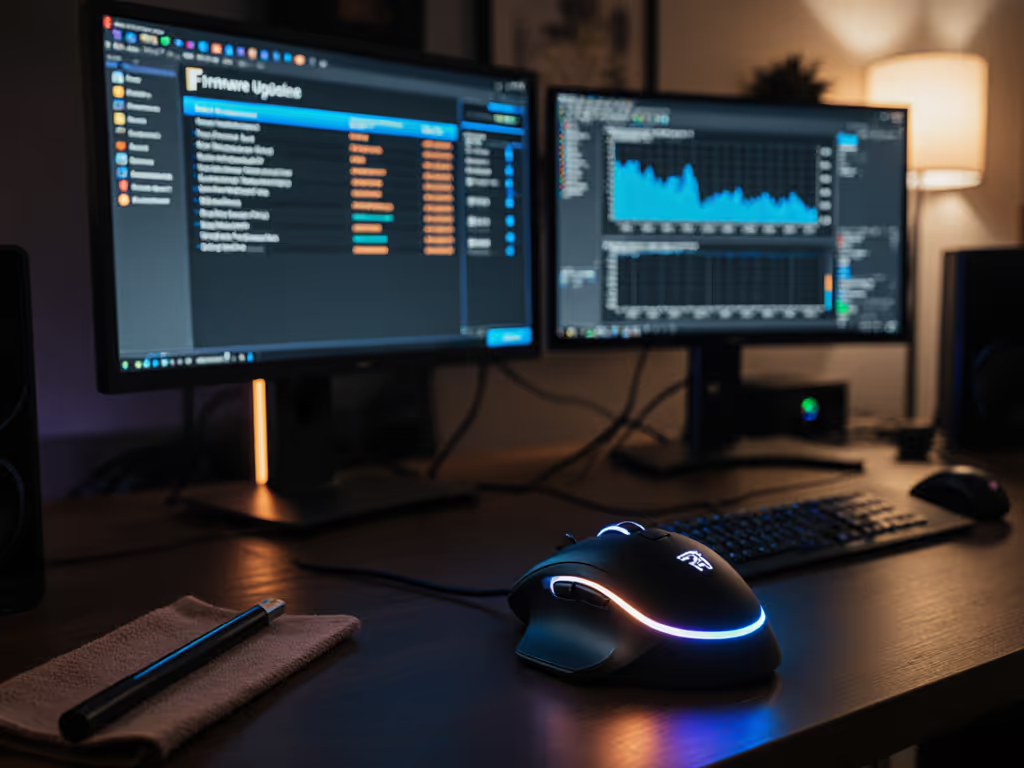
- Install your manufacturer's software (Logitech Options, KensingtonWorks, or other brand-specific applications provide essential customization without third-party risks).
- Reset to default settings to establish a clean baseline before customizing.
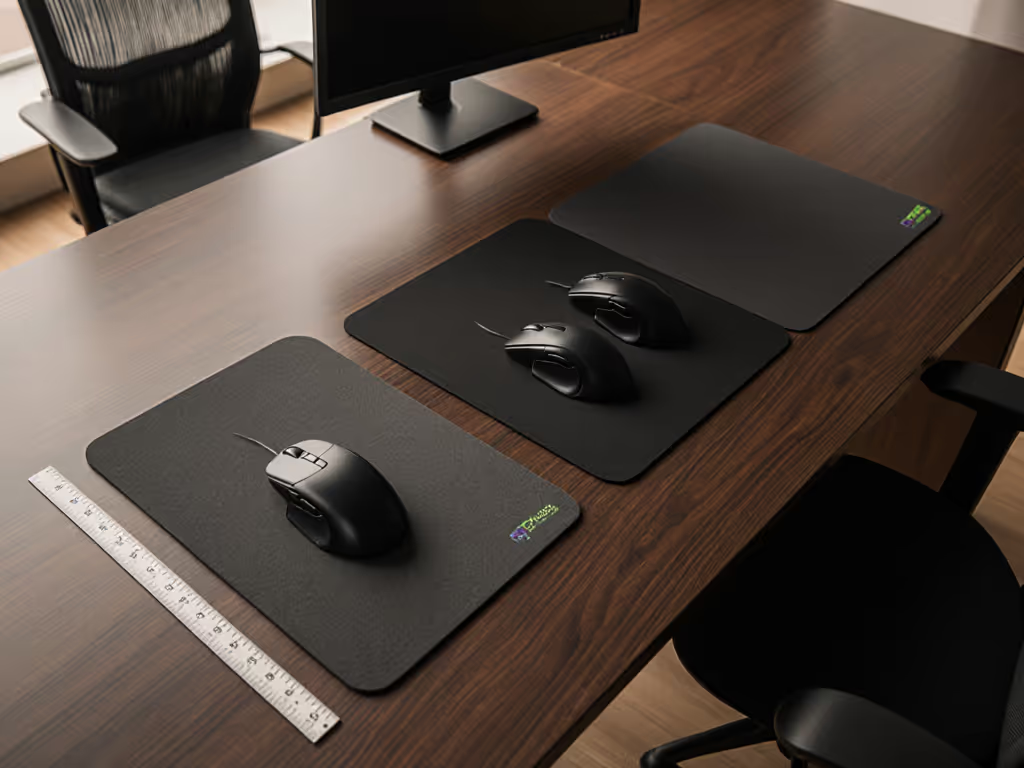
- Measure your natural hand position using the "open palm check": rest your hand on your desk as if reaching for your mouse. Trace the outline. Your mouse shape should fit within this boundary without stretching or compression.
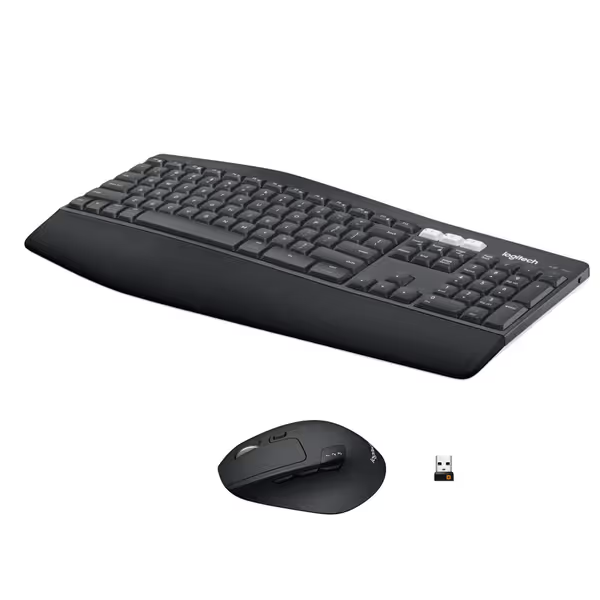
Logitech MK850 Wireless Keyboard and Mouse Combo
Ergonomic, multi-device keyboard/mouse for seamless cross-platform productivity.
$79.99
ConnectivityBluetooth & 2.4 GHz USB Receiver
ConnectivityBluetooth & 2.4 GHz USB Receiver
Pros
Comfortable full-size keyboard with cushioned palm rest.
Contoured mouse with hyper-fast scroll for efficiency.
Cons
Mixed feedback on connectivity stability and responsiveness.
Customers find the keyboard and mouse combo excellent in quality, comfortable, and easy to set up and connect. The connectivity and scroll speed receive mixed feedback - while some say it works well with no lag, others report frequent disconnections and delays in typing and computer work. The switchability and value for money also get mixed reviews, with some finding it well worth the price while others consider it disappointing for the cost. The keyboard responsiveness receives negative feedback, with one customer noting the keys are hard to press.
Customers find the keyboard and mouse combo excellent in quality, comfortable, and easy to set up and connect. The connectivity and scroll speed receive mixed feedback - while some say it works well with no lag, others report frequent disconnections and delays in typing and computer work. The switchability and value for money also get mixed reviews, with some finding it well worth the price while others consider it disappointing for the cost. The keyboard responsiveness receives negative feedback, with one customer noting the keys are hard to press.
The real value emerges when you customize within your neutral zone. For example, the Logitech Options software allows assigning horizontal scroll to your thumb wheel (essential for video editing timeline work) without requiring contorted thumb positioning. With Microsoft travel mouse setups, check that vertical scroll resistance matches your grip strength to avoid excessive pressing force.
Essential Customizations for Strain Reduction
Button Mapping Strategies
Resist the urge to overload thumb buttons (they're prime candidates for RSI when placed too far from your natural grip). Instead:
- Map high-frequency actions (copy/paste) to buttons requiring minimal finger travel
- Place infrequently used functions (zoom, app switching) on less accessible buttons
- Test grip pressure using the "tissue test": place a single-ply tissue under your hand; if it gets crushed during use, you're gripping too hard
Sensitivity Calibration
Higher DPI doesn't mean better productivity. Most professionals work optimally between 800 to 1600 DPI (enough precision for pixel-level work without excessive arm movement). Create a simple sensitivity test:
- Open a spreadsheet
- Time how long it takes to select a 10x10 cell block 10 times
- Adjust DPI downward in 200-point increments
- Note when selection time stabilizes or increases
This data-driven approach identifies your true performance sweet spot, not just marketing claims. For precise cursor behavior beyond DPI, understand mouse acceleration and pointer precision.
Advanced Features for Sustainable Workflow
Mouse Gesture Customization
Gestures can reduce repetitive key combinations when implemented thoughtfully. For workflow automation mouse features to be sustainable:
- Keep gesture motions within 2 inches of starting point
- Avoid twisting or radial thumb movements
- Assign only 2 to 3 core gestures to prevent cognitive overload
The Logitech Options software's "Spotlight Effects" (highlight, magnify, digital laser) demonstrate how intentional gesture design can enhance presentations without straining wrist tendons. If you're choosing between ecosystems, compare Logitech vs Razer vs SteelSeries software to pick features that fit your workflow. Test new gestures using the "30-second rule": if you can't recall the motion after half a minute, it's too complex for reliable use.
Workflow Automation with RSI Awareness
Macros become dangerous when they encourage prolonged static postures. Instead of mapping entire repetitive processes to single buttons, build in natural break points:
- Insert 0.5-second pauses between macro steps
- Alternate between keyboard and mouse-triggered automations
- Never automate tasks requiring sustained grip tension
Your Customization Checklist
Before finalizing settings, run this safety-first assessment:
- Pressure test: Can you maintain the "tissue test" standard throughout your work session?
- Movement audit: Are cursor paths smooth or jagged? (Jagged paths indicate compensation for pain)
- Fatigue timeline: Does discomfort appear later than 2 hours into work?
- Microbreak alignment: Does your configuration allow natural pauses every 25 to 30 minutes?
Remember: microbreaks matter. No software configuration replaces strategic rest periods for tissue recovery.
Actionable Next Steps
- Download your mouse manufacturer's software (avoid third-party tools that may introduce input lag)
- Implement one customization focused on reducing finger travel distance
- Set a recurring reminder for posture checks every 45 minutes
- Test new settings with your most repetitive task for 15 minutes before full adoption
Customization isn't about maximizing every button, it's about creating a sustainable interface between your body and work. When your productivity mouse settings align with your physiology, you'll notice smoother cursor paths, fewer "missed clicks," and, crucially, the ability to maintain focus without physical distraction. The most powerful gaming mouse or productivity tool isn't the one with the most features, but the one that lets you work consistently without strain stacking up throughout your day.
Start small, measure your comfort as rigorously as your clicks per minute, and remember that true performance includes the ability to work comfortably tomorrow (not just today).
Related Articles